
Practical
You record voice memos and never play them back? Your iPhone can turn them into notes you’ll actually find
Your iPhone can transcribe voice memos by itself, in Voice Memos and in Notes. How to do it, and 3 moves so you find what you said again.
Contents
Your iPhone can turn voice memos into text on its own: the Voice Memos app shows a transcript of each recording, and the Notes app can record and transcribe at the same time, with a transcript you can search. The hard part isn’t recording. It’s finding what you said three weeks later, and that takes three small moves.
You know the list. “New Recording 47”. “Home 12”. A street name you don’t remember walking down. Somewhere in there is the idea you had in the car, the name of the plumber, the thing your mother asked you to bring. You’ll never press play to find out.
Why you never play your voice memos back
Because recording feels like remembering, and it isn’t. In a well-known 2014 study, people on a museum tour remembered fewer objects, and fewer details about them, when they had photographed them instead of just looking (Henkel, 2014). The camera did the remembering, so the brain didn’t bother. Henkel’s own conclusion: the photos only help if you go back to them and do something with them.
A voice memo works the same way, with one extra problem: you can’t skim audio. A page of notes takes five seconds to scan; ten memos of two minutes each take twenty. So the memos pile up, unnamed and unheard, and the idea is lost twice: once in your head, once in the app.
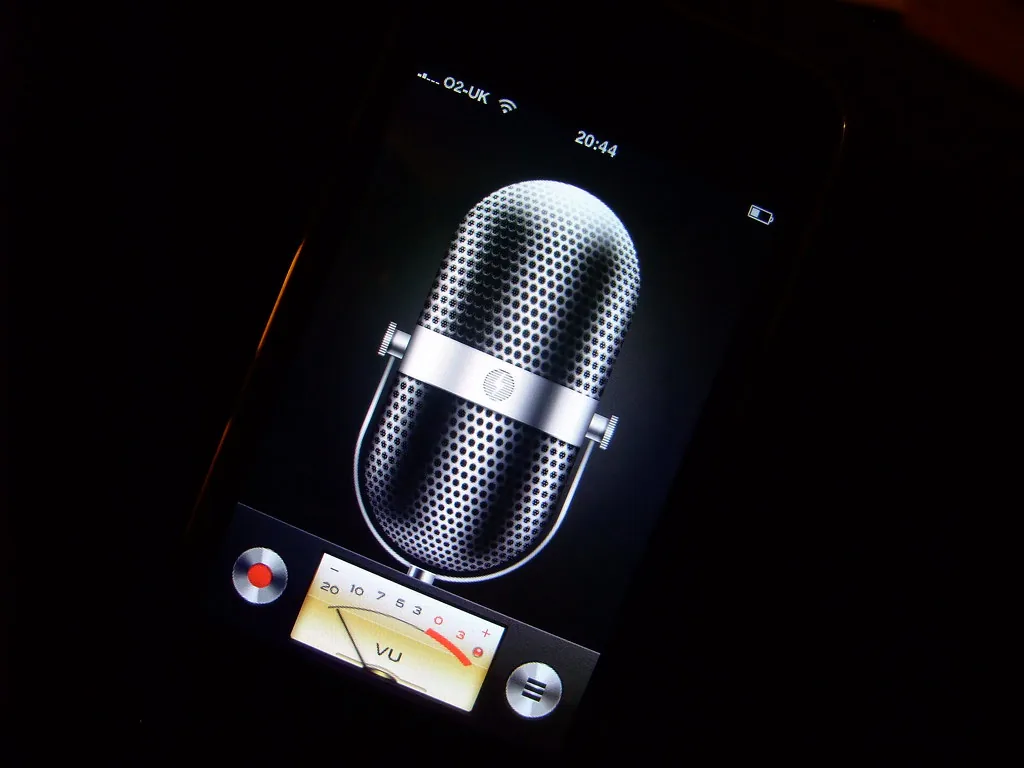
How to transcribe voice memos on iPhone
Since iOS 18, the Voice Memos app transcribes recordings by itself. Open a recording, then open its transcript (the button shaped like a speech bubble or quotation marks): the text appears, you can read it, select a passage and copy it into a note or a message. Older recordings that contain speech get transcribed too.
Two conditions, according to Apple: an iPhone 12 or later, and a supported language (English in all its variants, Spanish, Portuguese, Italian, French, German, Japanese, Korean, and simplified and traditional Chinese) (Apple, iPhone User Guide). If you don’t see the transcript button, one of the two is missing.
Better: record straight into Notes
If what you say is meant to be found again, record it where you write. In the Notes app, open a note, tap the paperclip, then “Record Audio”. You can watch the live transcript while you speak. Afterwards, Apple lets you search the transcript, tap a word to replay the audio from that moment, and add the transcript to the note itself (Apple). On iPhones with Apple Intelligence, a summary of the recording is one tap away.
The difference matters: a memo lives in a list of recordings, a note lives with your other notes, where you already look. For a quick line rather than a long recording, the microphone on the keyboard does the job: dictate straight into a note, no audio file at all.
3 moves so you find it again
Transcription solves half the problem. The other half is making sure the text can be found by the words you’ll search with later.
1. Say the title first
Start every recording with one sentence that names it: “Plumber, quote for the bathroom.” Then rename the memo with those same words. In three weeks, you won’t search for “New Recording 47”; you’ll search for “plumber”.
2. One memo, one thing
A five-minute memo mixing the plumber, a gift idea and the dentist is a memo you’ll never reopen. Stop, start a new one. Short memos get short, findable titles, and each one ends up where it belongs.
3. Empty the inbox the same evening
Once a day, take two minutes. Each memo becomes one of three things: a reminder if it’s something to do, a note if it’s something to keep, or nothing at all, and you delete it. It’s the same move as a brain dump, just spoken: the point isn’t to store, it’s to sort. Codes and passwords don’t belong in a memo: see where to keep them.
That’s the step MemoryPilot does for you: you say it in your own words, it keeps it, and you find it again by asking (“what was the plumber’s quote?”), without a title or a folder.
The surprise: speaking it already helps you remember
Here’s the good news about all those memos. Words you say out loud are remembered better than words you only read silently, a result called the production effect (MacLeod and colleagues, 2010). Saying “plumber, Thursday” into your phone already leaves a stronger trace than thinking it.
And knowing it’s saved somewhere you trust frees your head for what comes next: people who could save a first file remembered a second one better (Storm and Stone, 2015). So keep recording. Just record in a way you can find again, and your voice memos stop being a graveyard and become a second memory.
Frequently asked questions
How do I transcribe voice memos on iPhone?
On iOS 18 or later, open the recording in Voice Memos and tap the transcript button (speech bubble or quotation marks). The text appears and you can copy it. It needs an iPhone 12 or later and a supported language, such as English, French, Spanish or German. Older recordings with speech are transcribed too.
Can I convert voice notes to text in Notes?
Yes. In a note, tap the paperclip, then Record Audio. Notes transcribes as you speak. When you’re done, open the recording to read the transcript, search inside it, copy it, or add it to the note. Tapping a word replays the audio from that point. It needs an iPhone 12 or later.
Why is there no transcript on my voice memo?
Usually one of two reasons: the iPhone is older than the iPhone 12, or the recording isn’t in a supported language (English, Spanish, Portuguese, Italian, French, German, Japanese, Korean, simplified or traditional Chinese). A recording with no clear speech, such as music or noise, won’t produce one either. Updating to the latest iOS also helps.
Stop trying to remember everything.
MemoryPilot is free to start, and doesn’t ask for a credit card.